Kate Donovan
The first purchase may be no purchase at all.
A new subscriber opens a shopping cart for a modem, router, and mesh kit—then notices the ISP box already has Wi-Fi printed on it. That box may be a gateway, combining the modem function that connects to the provider with a router that shares the connection and provides Wi-Fi. Buying both devices again could duplicate what is already installed.
The useful first check is the box’s model number and the ISP’s equipment list. A separate router may make sense if the supplied Wi-Fi lacks needed features or coverage; a mesh kit is mainly for extending coverage across a larger or difficult space. Neither fixes an inactive internet connection.
Start with the incoming connection
Internet service and home Wi-Fi are different links. A modem or fiber terminal brings the provider’s connection into the home; a router creates the home network and usually broadcasts Wi-Fi. A stronger Wi-Fi router cannot replace equipment needed to receive the service in the first place.
- Cable service typically needs a cable modem. If buying one rather than renting, check the provider’s approved-model list and the speeds it supports.
- Fiber service typically enters through an optical network terminal, or ONT, often installed by the provider. A cable modem cannot replace it.
- An ISP gateway combines the service connection and router functions in one box. If it already provides working Wi-Fi, neither a separate modem nor a router is automatically necessary.
Before shopping, identify the service type and read the label on the existing box: is it a modem, an ONT, or a gateway with Wi-Fi? Then check the provider’s rules for customer-owned equipment. Replacing a gateway may require a modem and router, or only a router, depending on the connection and what the provider allows.
Router or access point?
A router manages traffic between the home network and the internet. It typically assigns local IP addresses, lets devices share one internet connection, and provides basic firewall protection. An access point broadcasts Wi-Fi so wireless devices can join that network; it does not replace the router’s management role.
Many ISP gateways contain both a router and an access point, alongside the equipment that connects to the provider. If the gateway already manages the network and its Wi-Fi reaches the rooms that need it, a separate router is unnecessary. A new router makes sense when routing is absent or when better network controls or Wi-Fi performance justify replacing the gateway’s built-in functions.
For a coverage-only problem, an access point may be enough. Adding another router without changing the gateway’s settings can create double NAT, which may complicate gaming or remote access. Where supported, bridge mode lets the new router take over; access-point mode leaves the gateway in charge.

The Archer AX21 combines routing and dual-band Wi-Fi 6 in one device. TP-Link lists gigabit ports and 2.4 GHz and 5 GHz bands.
It still needs a separate modem or fiber ONT for the incoming connection. It does not add a 6 GHz band.
Set up only what the connection needs
-
Check what is already installed
Look for an ISP gateway, modem, or fiber ONT. Check whether the installed equipment also provides Wi-Fi before buying anything else.
-
Keep the connection device the service requires
Cable service needs a compatible modem; fiber service uses an ONT. If the ISP gateway already handles the connection, a separate modem is unnecessary.
-
Add Wi-Fi only if it is missing
A gateway that broadcasts Wi-Fi may be all the home needs. If there is only a modem or ONT, add a Wi-Fi router; if an existing router lacks Wi-Fi, an access point can provide it.
-
Connect wireless devices
Phones, laptops, and other Wi-Fi devices join using the network name and password. They need no additional home-network hardware or Ethernet cable.
-
Use cables for wired links
An Ethernet cable is needed for each wired connection, such as a desktop connected to a router or a separate modem connected to a router. Do not buy cables for devices that will connect over Wi-Fi.
When Wi-Fi fails in one room
A working internet connection does not guarantee strong Wi-Fi throughout a home. The router’s signal weakens with distance, and floors and walls can reduce it further. Concrete, brick, metal, and plumbing can make the route to a particular room especially difficult. A router tucked behind a TV or inside a cabinet may have a harder time reaching that room than one placed in the open.
Before replacing a modem or paying for a faster plan, check where the slowdown occurs. Using the same device, compare performance near the router with performance in the weak room. If the connection works well nearby but deteriorates upstairs, the upstairs Wi-Fi troubleshooting guide can help narrow down the coverage problem. If performance is poor beside the router too, the issue may not be limited to that room.
Try moving the router into the open, away from large obstacles, then check the weak room again. If its location cannot change or the signal still falls short, an additional Wi-Fi access point, mesh node, or extender may help. Placement matters: a wireless node must receive a usable signal itself before it can improve coverage farther away.
Extender or mesh?
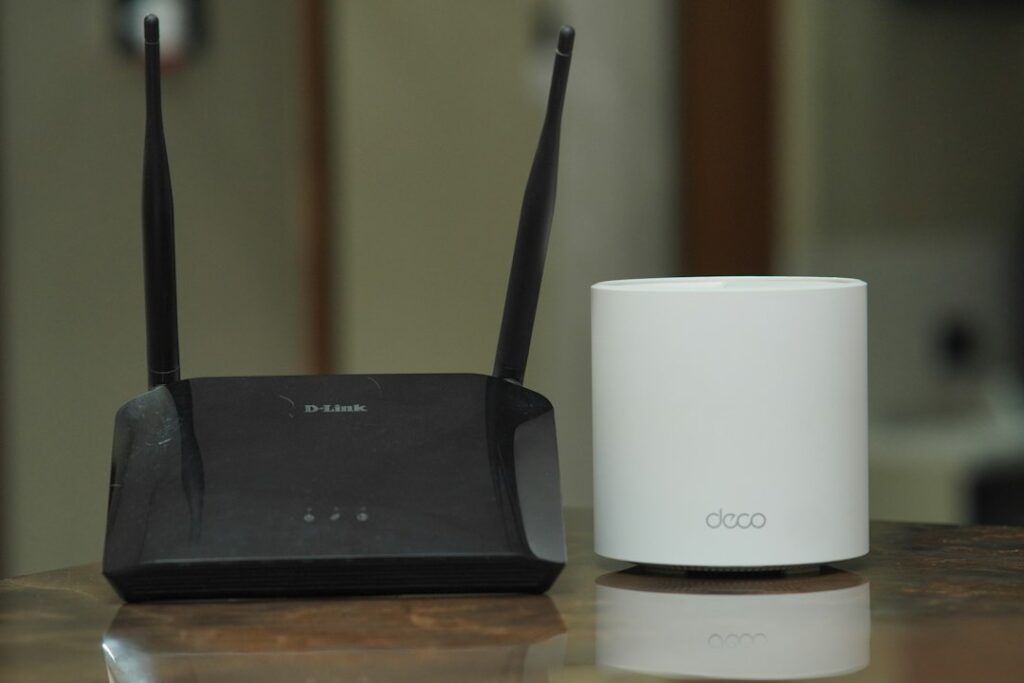
Neither an extender nor a mesh kit is a default purchase. First, check whether moving the existing router to a more open, central spot improves the weak room. If only one area still struggles, an extender is usually the smaller, cheaper addition. Weak coverage across several rooms or floors makes mesh more relevant.
Choosing a coverage upgrade
An extender needs an outlet where it still receives a strong signal from the router—not one deep inside the dead zone. Repeating traffic over a wireless link can reduce usable speed even when signal bars improve. Why extender speeds can fall, and what placement changes explains that trade-off.
Mesh spreads coverage through multiple nodes, but those nodes also need reliable connections to one another. It costs more than a single extender and cannot fix a slow incoming connection. For a closer look at what each option costs and covers, see the cost-and-coverage comparison for one dead zone.
The dual-band RE220 extends coverage to a weak area, but its speed depends on the signal where it plugs in.

When does a home need a switch?
A switch is useful when a router or gateway runs out of Ethernet ports. The modem or ONT handles the incoming ISP connection; the router directs traffic between the home network and the internet. A switch does neither of those jobs, and it does not broadcast Wi-Fi. It simply connects more wired devices to the same local network.
For example, a TV, game console, desktop, and network printer might use all the router’s LAN ports. Plugging a switch into one LAN port provides room for the rest. If every wired device already has a port—or the household uses only Wi-Fi—a separate switch can be skipped.
Choose based on the number of devices likely to be connected, leaving a spare port or two. Filling the ports does not automatically reduce internet speed, though devices sharing a busy connection can compete for bandwidth; see what happens when several switch ports are active. A faster switch matters chiefly for local traffic: 2.5GbE options for NAS-to-desktop transfers may help when the connected devices also support those speeds. It will not make an ordinary internet plan faster.
Put existing Ethernet wiring to work
A wall Ethernet port can give a desktop, TV, or game console a wired connection. It can also carry traffic between mesh units, so they do not have to rely on a wireless link to each other. But a wall jack is not automatically connected to the home network.
Trace the ports before buying equipment. Home Ethernet runs commonly meet at a wiring panel. Identify which panel connection leads to each room, then connect the needed runs to a LAN port on the gateway or router, using a switch if more ports are needed. Check that each jack works with a device before planning around it. The steps for connecting mesh through wall ports cover the backhaul arrangement in more detail; the mesh system must support wired backhaul.
A cabled house can also use wired access points to provide Wi-Fi in distant rooms without buying mesh units. Whichever approach is chosen, avoid having both the ISP gateway and mesh system route the same home network: that can create double NAT, which may interfere with gaming or remote access. Putting one device in bridge or access-point mode is the usual remedy; double-NAT troubleshooting for gateway-and-mesh setups explains the choices.
Match the router to the home, not the headline speed
-
Rooms and walls
A router in one room may not reach another through thick walls. Check coverage before paying for faster Wi-Fi.
CheckReliable signal where devices are usedSkipSpeed claims as a substitute for coverage -
Nearby networks
In a crowded apartment, interference may matter more than peak speed. Check which bands devices support before paying for another.
CheckBands supported by current devicesSkipBuying solely for the largest Wi-Fi number -
Connected devices
Count active streams, calls, and transfers rather than every device that occasionally connects.
CheckCapacity for simultaneous useSkipOversizing for idle devices -
Plan speed and ports
A 2 Gbps plan needs ports above 1 Gbps along the relevant wired path. Faster Wi-Fi alone cannot remove a port bottleneck.
CheckWAN and LAN ports that match the setupSkipMulti-gigabit claims with gigabit-only connections

The Archer BE600 pairs Wi-Fi 7 with a 10 Gbps port and multiple 2.5 Gbps ports. Those ports matter for multi-gigabit service or fast wired devices; the BE9700 speed figure is not an internet-speed promise.
TP-Link lists coverage up to 2,600 square feet. That figure cannot establish how well the router reaches through a particular home’s walls.
- Wireless
- Wi-Fi 7, tri-band
- WAN/LAN
- 1 × 10 Gbps
- WAN/LAN
- 1 × 2.5 Gbps
- LAN
- 3 × 2.5 Gbps
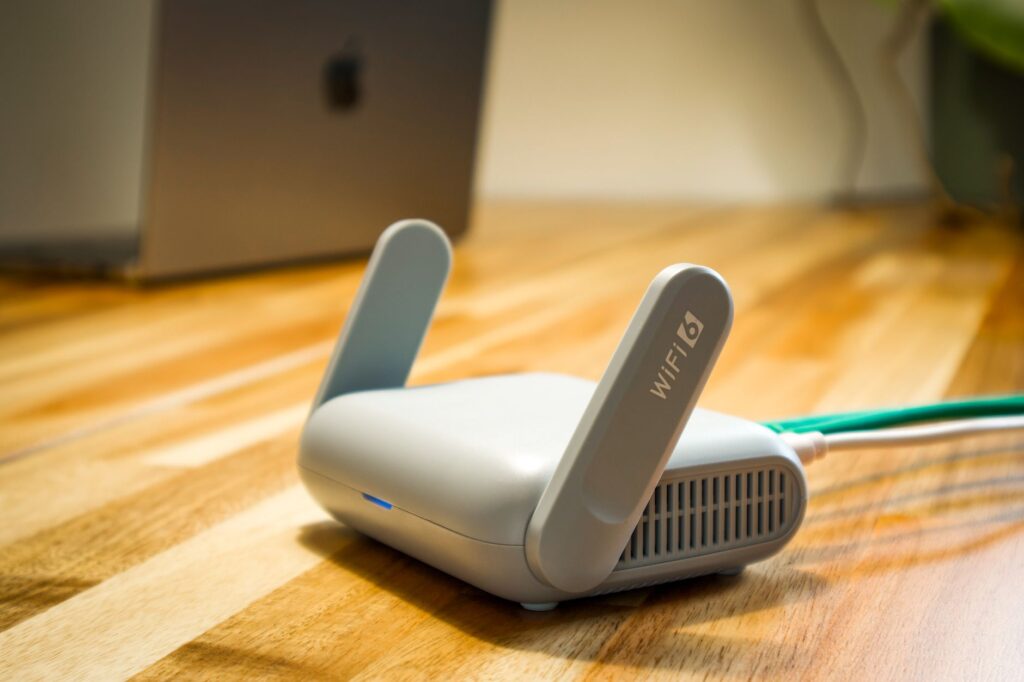
- Start with service Confirm active service and use the compatible modem, fiber ONT, or ISP gateway already provided before buying another connection device.
- Check the gateway Keep one working router and a Wi-Fi source. An ISP gateway may provide both.
- Buy for a need Add cables for wired connections, a switch when LAN ports run out, or coverage hardware only where testing shows a weak signal.
Test before replacing equipment
Compare performance near the router with the problem room before buying an extender or mesh system; moving the Wi-Fi source may help. If the connection device stays online but the router repeatedly drops connections, follow the router-disconnection checks first. A failing router is not, by itself, a reason to replace every piece of equipment.