Kate Donovan
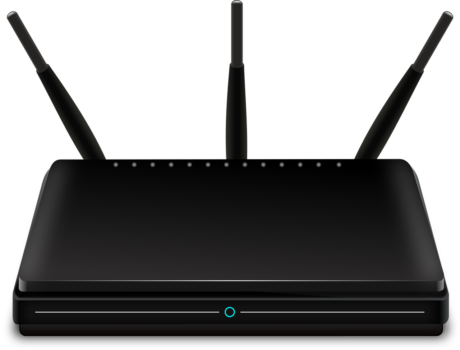
The hardest part is knowing whether the router needs replacing at all.
A video call freezes mid-sentence, then reconnects while the Wi-Fi icon still shows plenty of bars. Those bars show signal strength, not whether the connection stays stable. Dropouts close to the router may point to interference, a loose cable, overheating, or firmware that needs updating. If the trouble happens mainly in distant rooms or when several devices are active, the router may be struggling with the home’s layout or workload. That distinction can save a needless replacement—or make a better-fitting setup worth considering.
Choose for the home, not just the dropout



Find out what actually disconnects
-
Compare devices at the same moment
When a dropout happens, check a phone and a laptop as well as the device that reported it. If only one loses its connection while the others keep working, start with that device’s Wi-Fi settings or software rather than replacing the router.
-
See whether the network disappears
Check the available Wi-Fi networks during the outage. If the home network vanishes from several nearby devices, the router or an access point may be restarting. If the network remains visible, note whether devices can connect to it but cannot load a page.
-
Test near the router and farther away
Try the same device in both locations. A connection that holds near the router but repeatedly drops in a distant room points toward weak coverage or interference. If several devices disconnect even beside the router, distance is less likely to explain it.
-
Compare with a wired connection
If possible, connect a laptop to the router with Ethernet and test it during a Wi-Fi dropout. Working Ethernet points toward the wireless side of the network. If Ethernet also loses internet access, the router, modem, or internet service may be involved.
-
Treat smart-plug alerts carefully
A plug marked “offline” in an app may still be connected to Wi-Fi but unable to reach its cloud service. The distinction matters when checking whether smart plugs work without internet: an app alert alone does not prove the wireless signal dropped.
Match the fix to the dropout
-
Drops happen in one room: change the placement
Move the router into the open, away from thick walls, metal cabinets, and large appliances. If only a distant room remains unreliable, a mesh system may make more sense than replacing a working router with another standalone model.
-
Wireless drops throughout the home: restart the equipment
Restart the modem and router, then check whether their power cables are secure. If the connection settles briefly before failing again, note that pattern rather than repeatedly restarting.
-
All wireless devices still disconnect: check for updates
Install available router firmware updates through its app or admin page. An update may fix a stability bug, though it will not repair failing hardware or an unstable internet connection.
-
Only one device drops: inspect that device
Update its operating system and Wi-Fi driver, forget and rejoin the network, and turn off any setting that switches automatically between Wi-Fi and mobile data. Test it near the router before changing network-wide settings.
-
Problems persist after the checks: consider replacement
If several devices lose Wi-Fi while Ethernet stays connected, the router may be struggling or failing. A standalone router suits a smaller space; mesh is more useful when coverage is the recurring problem.
If the router loses power, check the outlet, adapter, and cable first; surge protection for routers and networking equipment addresses power-related risk, not a weak Wi-Fi signal. If a computer connected by Ethernet also loses internet, check the modem and provider connection before buying wireless equipment.
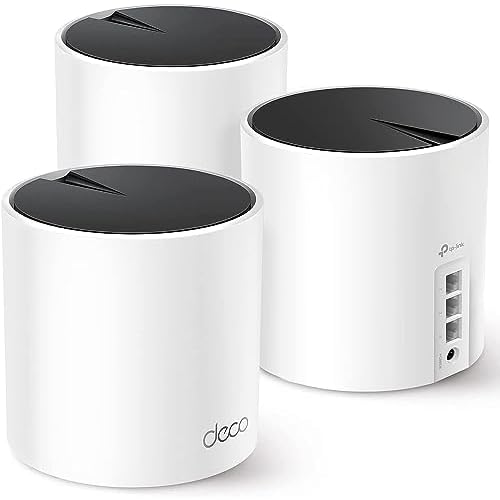
Deco X55: Mesh coverage for rooms beyond one router’s reach
Three-pack covers up to 6,500 square feet.
When Wi-Fi stays steady near the router but drops in an upstairs bedroom or at the far end of the house, the TP-Link Deco X55 is worth considering. Its three units form one Wi-Fi network across the home, making it a fit for households where distance or floors appear to be the problem.
One unit connects to the modem; the others need spots where they can still receive a good signal. Placing a unit halfway toward a weak room is usually more useful than putting it inside the dead zone.
- Multiple units can bring Wi-Fi closer to rooms a single router struggles to reach.
- Three-pack allows coverage to be arranged around the home’s layout.
- Wi-Fi 6 supports compatible devices.
- Requires more hardware and careful placement than a standalone router.
- Does not fix dropouts caused by the modem or internet service.
eero 6+: One network for a busy home
Supports gigabit plans and over 75 devices.
The eero 6+ three-pack is a mesh system for households where Wi-Fi needs to reach beyond the rooms closest to the router. Its units form one network managed through the eero app, rather than leaving separate extenders to manage.
A long list of connected devices does not, by itself, explain repeated dropouts. If only a lower-cost tablet disconnects, its Wi-Fi tradeoffs in tablets under $300 may be more relevant than replacing the household network.
- Three units can spread coverage across rooms a single router struggles to reach.
- Supports gigabit internet plans and many connected devices.
- One app manages the mesh network.
- App-led setup and controls may not suit readers who prefer managing a router locally.
- Mesh will not fix a fault confined to one device or an unstable internet connection.
ASUS RT-AX1800S: A starting router with room to expand
Affordable standalone router with AiMesh compatibility.
The ASUS RT-AX1800S is a dual-band Wi-Fi 6 router for a home starting with one router but considering wider coverage later. It supports ASUS AiMesh, which allows a compatible ASUS router to be added as another network node.
Before planning that addition, check the exact model and firmware of any proposed second router against ASUS’s current AiMesh compatibility guidance. “Mesh compatible” does not mean every router from the same brand will work together; it is worth taking the same care used to check electronics compatibility before buying. Start by placing the RT-AX1800S centrally and testing the rooms where dropouts occur. A room behind thick walls or at the far end of the home may still need another node.
- Can start as a single router and later join a compatible AiMesh setup
- Wi-Fi 6 support for current devices without requiring a mesh kit upfront
- Built-in VPN and parental controls
- One router may not reach distant rooms or penetrate dense walls
- Expansion requires checking the specific AiMesh device pairing
- Adding a node will not fix dropouts caused by the internet connection
NETGEAR Nighthawk R6700AX: Replace an aging router in a smaller home
Covers up to 1,500 square feet.
When several devices lose Wi-Fi even near an older router, while a wired connection from the modem stays up, the R6700AX is a one-box replacement to consider. This standalone Wi-Fi 6 router is intended for apartments and smaller homes, with advertised coverage up to 1,500 square feet and capacity for up to 20 devices.
It connects to an existing modem or gateway by Ethernet; it does not replace a modem. If the current equipment combines a modem and router, its settings may need adjusting. Before replacing anything, check the older router’s power supply and firmware: a new router is most useful when the evidence points to the router itself.
- Wi-Fi 6 and WPA3 in one router
- App or browser setup
- cons
- Requires a separate modem or gateway
- A single-router swap may leave distant dead zones unchanged
Before buying hardware, keep a short log of when and where disconnects happen, which devices are affected, and whether Ethernet fails too. If only one device drops, check its updates and Wi-Fi settings. If Ethernet fails as well, investigate the modem and possible ISP outages. Dropouts limited to distant rooms point toward better placement or mesh coverage. If several devices lose Wi-Fi even beside the router while Ethernet stays stable, replacing the router becomes a more plausible fix.